
Sometimes, you might want to add expenses that are recurring. To do so, please follow the instructions below:
1. Click on the Add Expense button at the top of the page.

2. Choose the type of expense you'd like to add. For this example, we'll choose Reimbursement.

3. Enter the reimbursement name and select the merchant and category. You can also add a receipt in this step.
Pro Tip: If you clickthe toggle next to "Scan and populate" prior to adding your receipt, the system will automatically populate the information on your receipt into the expense details.

4. At the bottom, click on Recurring, and then click on Add Amounts & Dates
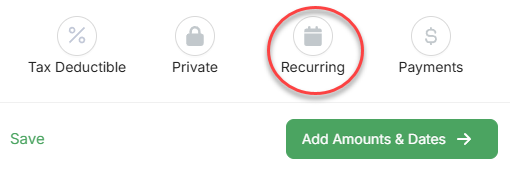
5. Enter the expense details and, once ready, click on Setup Recurring.
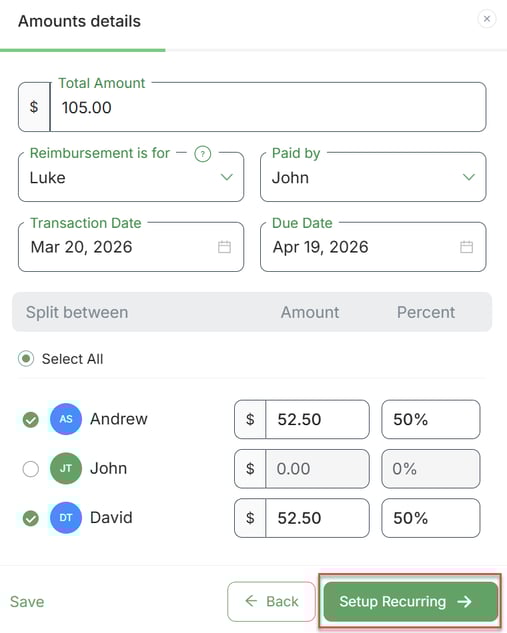
6. Enter the details for the recurring expense. Note that you need to click on the toggle if the expense has an end date. Once ready, click on Review Recurring.
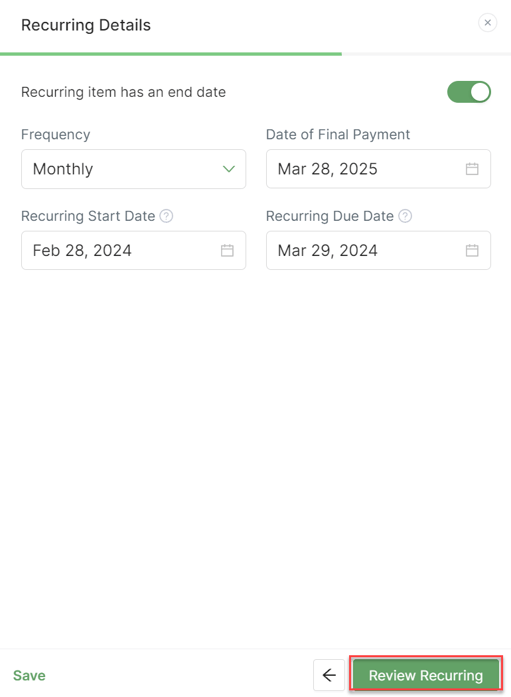
6. Take a moment to review the details of your expense, and once ready, click on Create Reimbursement.
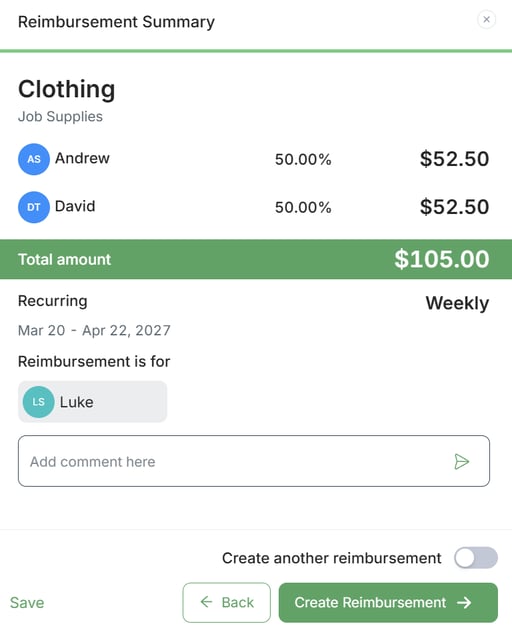
Congratulations! You've now created a recurrent expense. Please note that these instructions also are applicable when you're creating a Support or Bill expense.
If you have any questions about this topic, please don't hesitate to contact us at help@supportpay.com.