
In this article, you'll learn how to add a Reimbursement expense.
What is a Reimbursement?
A reimbursement in SupportPay is an expense paid by one family member that others are expected to repay, either partially or in full. To add a reimbursement expense, follow the instructions below:
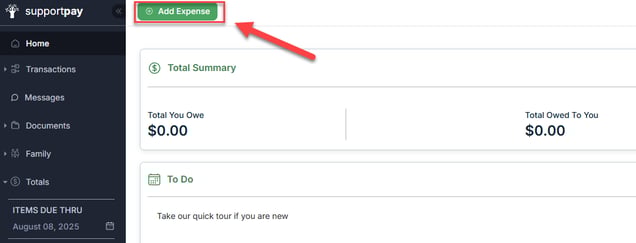
1. Click on the green Add Expense button at the top of the page.
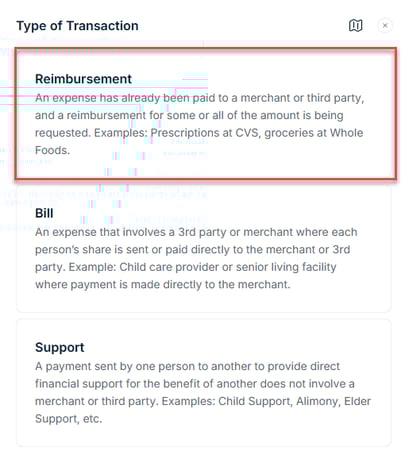
2. Select Reimbursement from the pop-up window.
3. Enter the reimbursement details (name, merchant, category). Here, you can also upload a receipt if you have one for the expense you're creating by clicking on the + Add Receipt button.
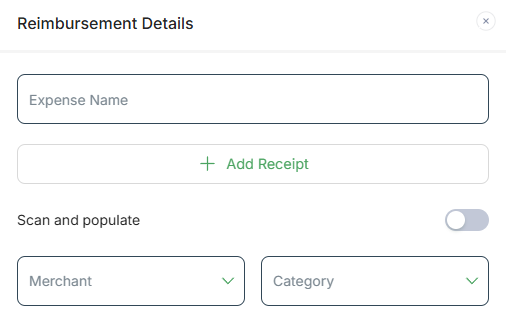
Additionally, you can also indicate if this expense is tax deductible, private, or recurring by selecting the appropiate option. Also, you can click on the Payments button, to indicate that you will be making the payment at once. When ready, click on Add Amounts & Dates.
Pro tip: Click on the Save button to continue adding the expense later (if you need to) without losing your progress.

4. Add the amount of the reimbursement and the rest of the details, such as date, due date, etc. In this step, you can split the reimbursement between family members. Once you've entered all the required information, click on Review Reimbursement. Note: The "Reimbursement is for" field allows you to specify the individuals for whom the reimbursement is intended. On the other hand, the "Split Between" section is where you can designate all parties responsible for covering the reimbursement costs.

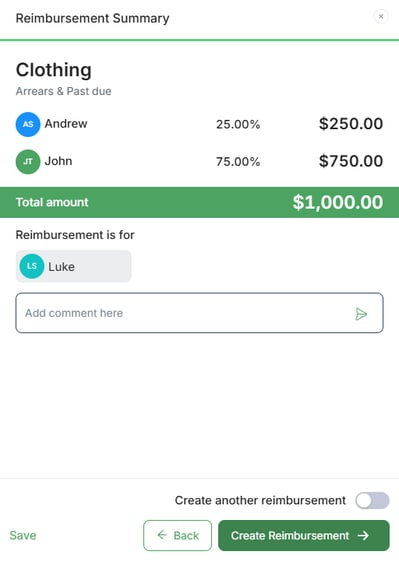
5. Take a moment to review the summary and add any comments that you might need. Once you've confirmed that the information entered is correct, click on Create Reimbursement.
Pro tip: Click the toggle next to “Create another reimbursement” to quickly add another reimbursement.
And that's it! Please feel free to contact us at help@supportpay.com if you have any questions about this process. Our helpdesk team will be happy to assist you!