
One of the key features of SupportPay is the awesome ability to make payments within the app. If you're wondering how to do it, please follow the instructions below:
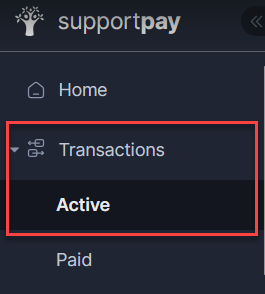
1. Navigate to the Transactions tab in the left-hand-side menu and click Active.
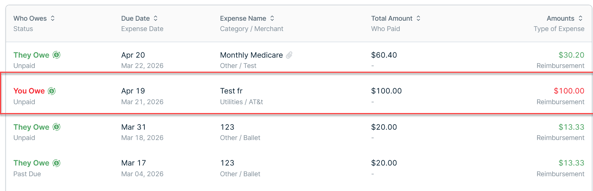
2. Look for the expense you'd like to pay and click on it.
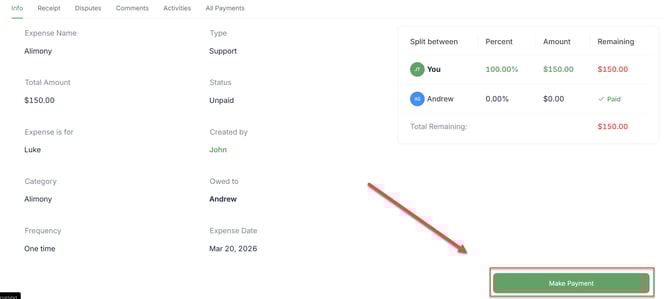
3. On the details page, click on the Make a Payment button.
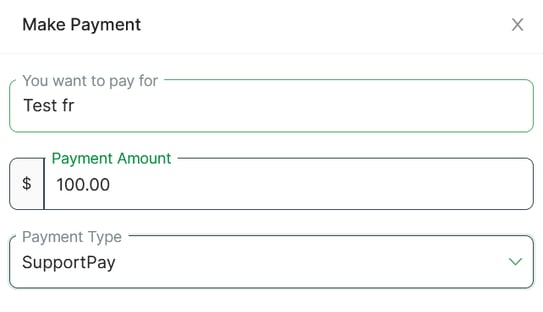
4. Select the type of payment for the expense (SupportPay or External) from the dropdown menu. (Note: In this step, you can also modify the amount in case you need to make a partial payment.)
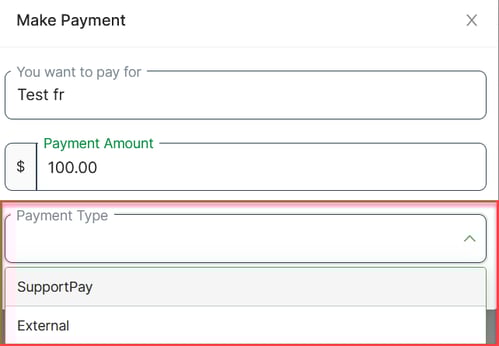
4a. If you choose SupportPay, this means that the payment will be made via bank transfer directly within our platform. (Note: To use this option, both you and the recipient MUST be registered for bank transfers in SupportPay.)
4b. If you select External, this means that the payment has already been made outside of SupportPay via cash, check, credit card, or payment app, and you will be recording your payment in our system. Therefore, select the payment method that you used to make the payment and continue. In this step, you can also add proof of your payment by clicking on the Add Payment Proof button prior to confirming the payment.
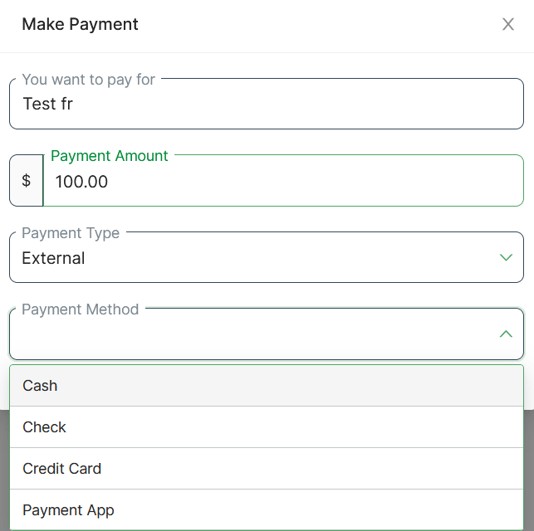
5. Once you have selected your payment method, enter all the required information and confirm the payment by clicking on the green button located at the bottom of the pop-up window.
IMPORTANT: Please note that manual payments are only entries created in SupportPay for your own records for payments made outside of our platform. If you intend to transfer money within the SupportPay platform, you must use the "SupportPay" option when selecting the payment type.
Please don't hesitate to contact us at help@supportpay.com if you have any questions about this topic. We'll be delighted to help if that's the case.