
In SupportPay, you have the option to download all the documents that have been uploadedto the platform. To do so, please follow the instructions below:For the best experience when downloading your documents, we recommend using the web app at my.supportpay.com.
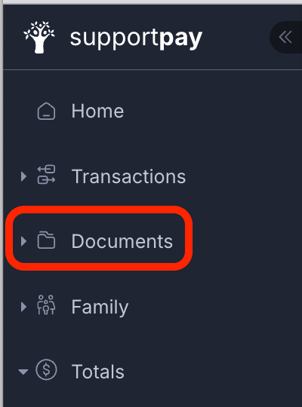
1. Log in and open the Documents Menu in the left-side toolbar.
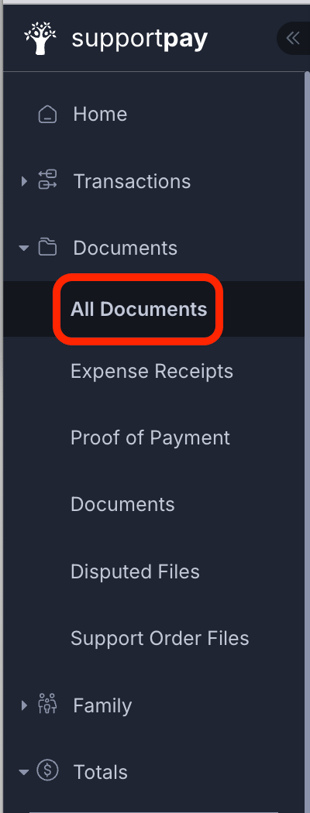
2. From the expanded Documents menu, click All Documents.
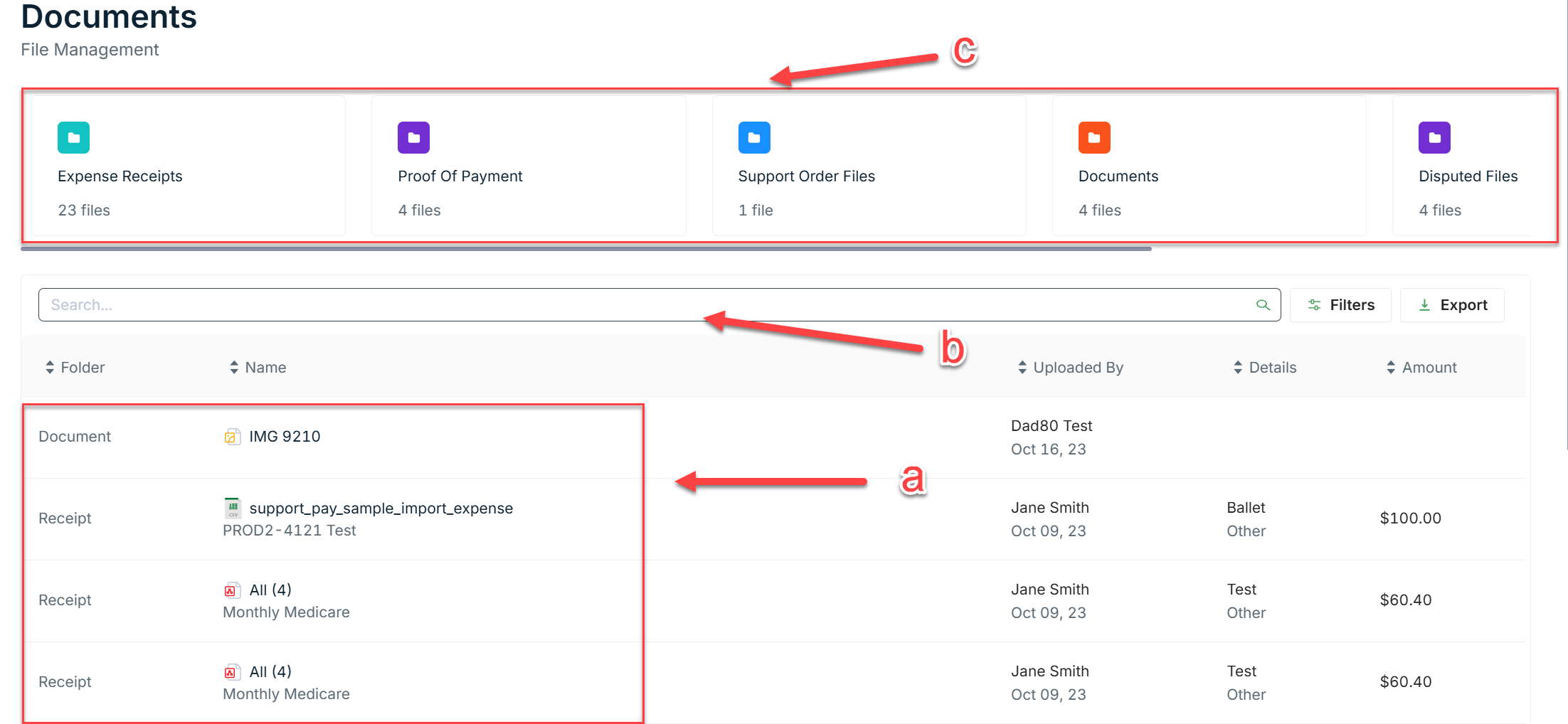
3. On the Documents screen, search for the document you'd like to download by: a) selecting it from the list, b) searching for it in the search bar or, c) clicking on the folder that contains the document.
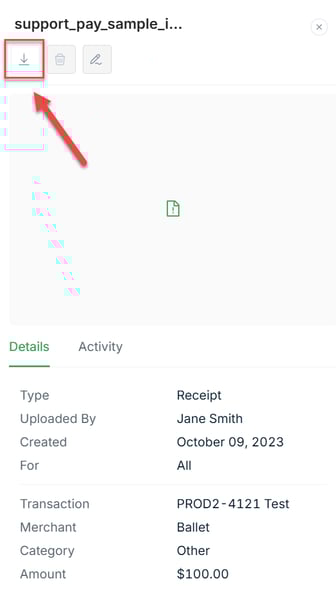
4. Once you've located your document, click on it. A new panel will appear on the right side containing the details of the file. Click on the download button to download it.
5. You're all set! Your document will be saved in your device.
Please don't hesitate to contact us at help@supportpay.com if you have any questions about this process, and we'll be more than happy to help.